How Punch O'Clock works
One loop, repeated as often as your day needs it. Everything else in the app exists to fix, total, export or bill what that loop wrote down.
The loop
-
Make a project
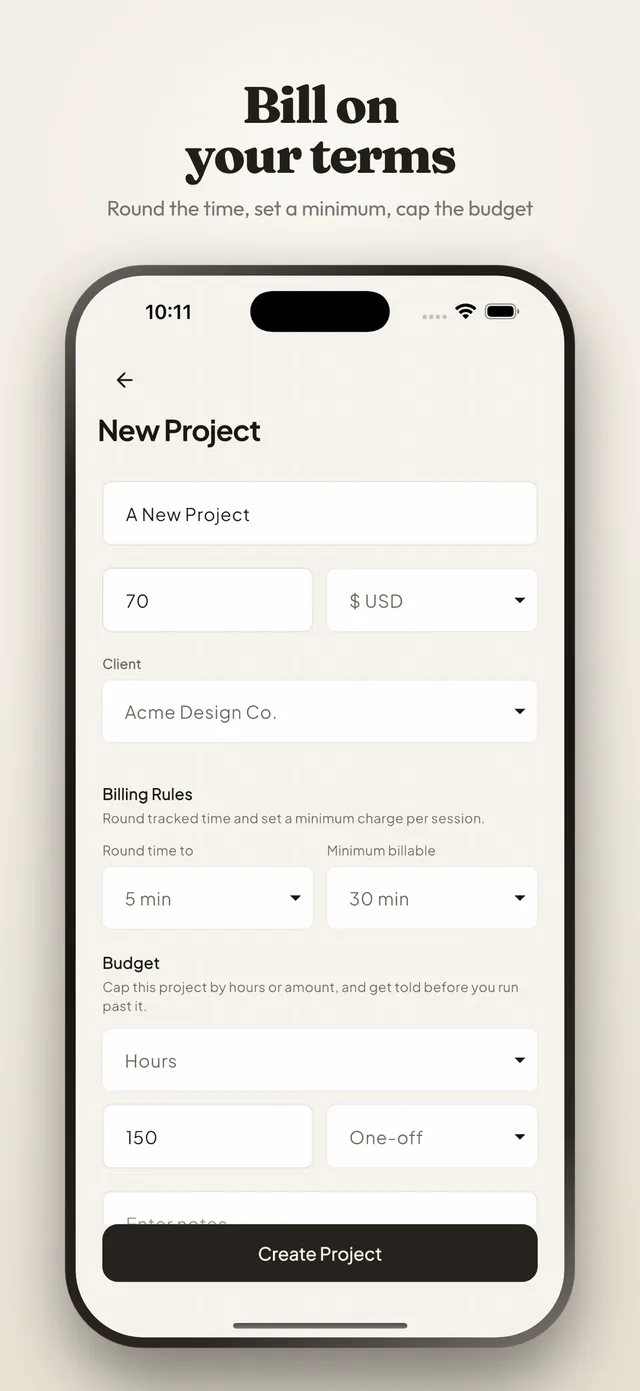
A name, an hourly rate and a currency — 159 of them to pick from. One project per client, or per piece of work if a client gives you several.
-
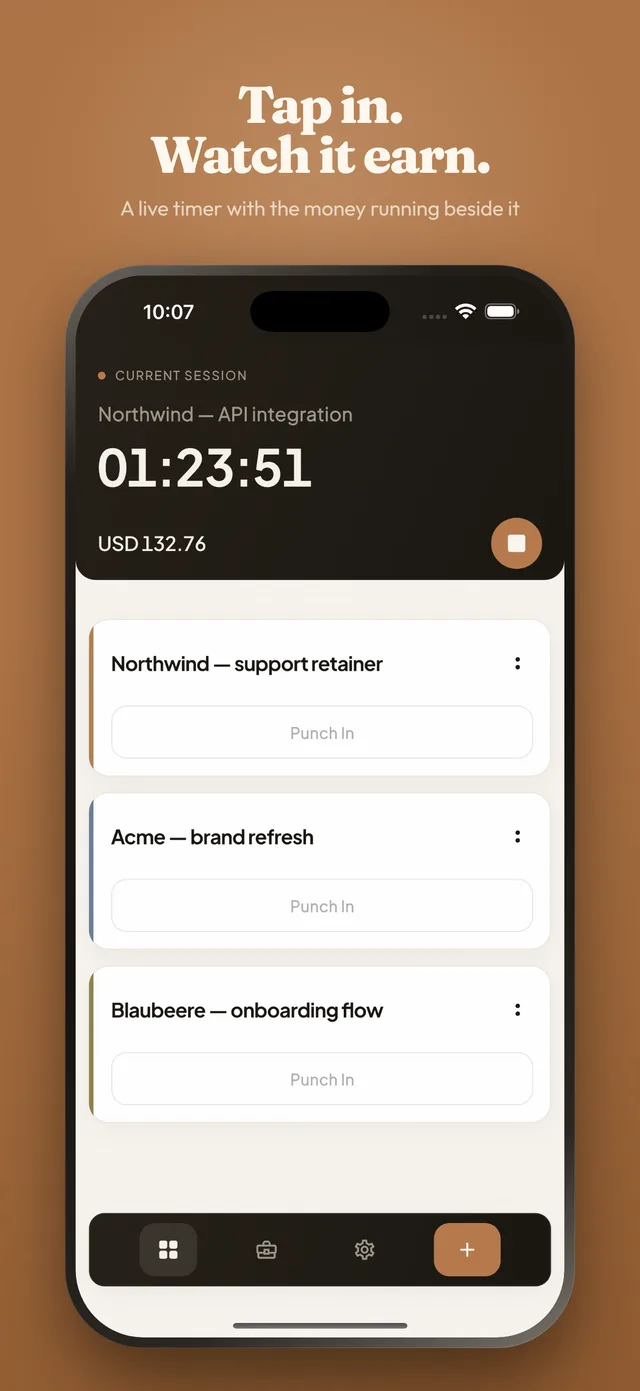
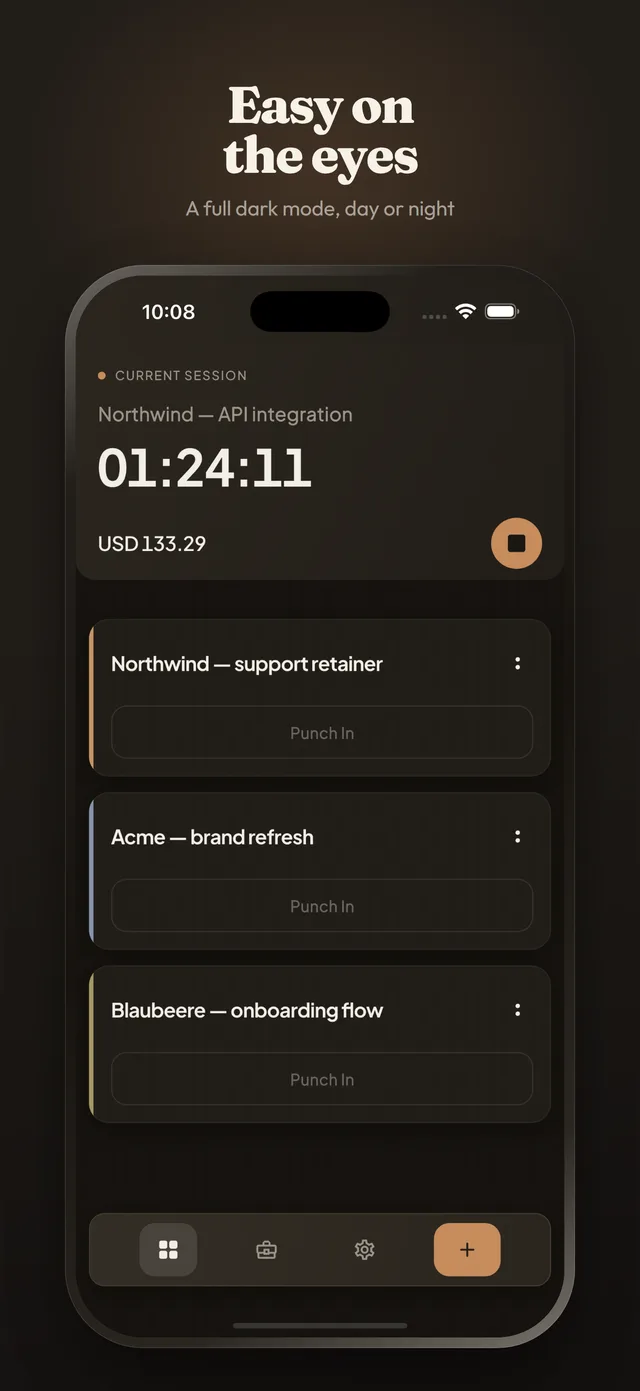
Tap it to punch in
The clock starts on that project. Punching into a second one stops the first at the same second, so two timers can never quietly overlap.
-
Tap it again to punch out
The session is written down with its date, its start, its end and its duration. Add a line of notes while you still remember what it was for.
When you forget to punch in
Which you will, and the app is built on the assumption that you will. Open the project and tap the big punch button: it turns over to offer Punch Now and Punch Earlier, and Punch Earlier starts the session at a time you choose rather than at this second.
If the work is already finished, add the session afterwards instead — date, start, end, a title and notes — and it lands in the log like any other.
Kestrel — content migration
- Noticed at
- 10:20
- Actually started
- 09:35
- Recovered
- 45m
When you forget to punch out
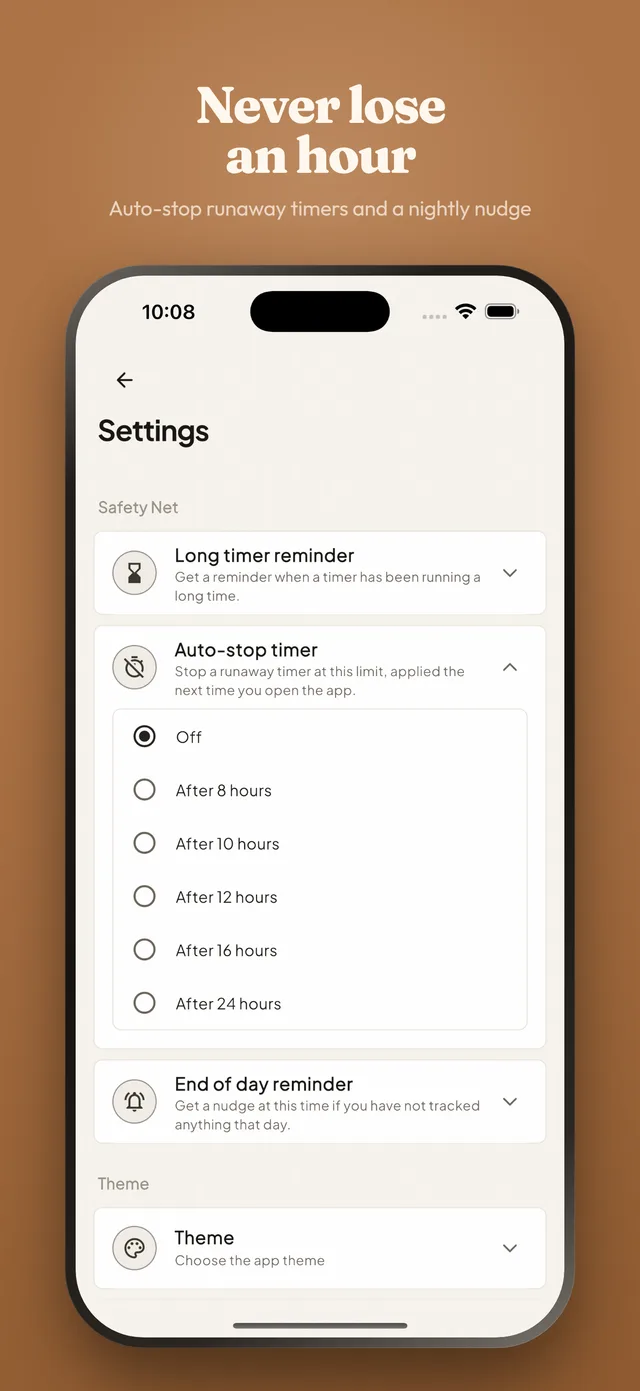
The reverse mistake is the expensive one, because it inflates an hour the client is paying for. Two things guard against it: a running session can show on the Lock Screen and in the Dynamic Island on iPhone, or as a notification on either platform, so the timer is visible without opening anything.
And if it does happen, swipe the session in the summary and correct the end time. Nothing in the log is fixed once it is written.
Northwind — API integration
- On the Lock Screen
- Since 09:12
- Running
- 1h 48m
What the log turns into
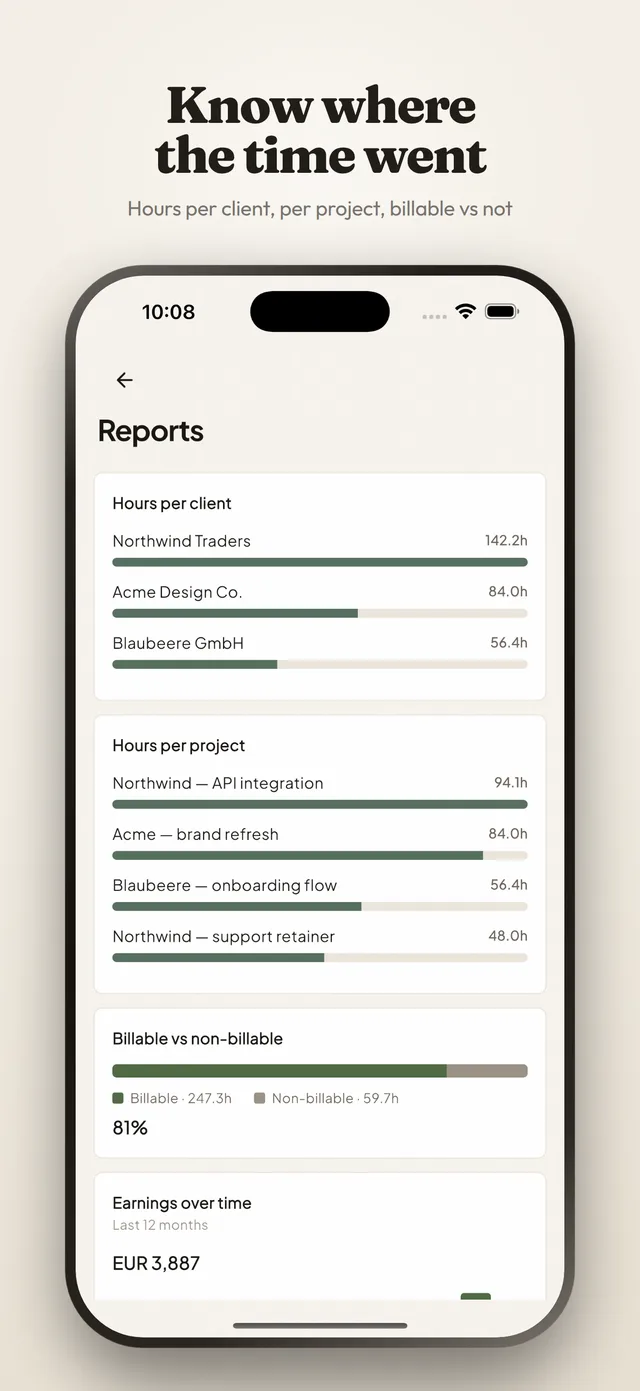
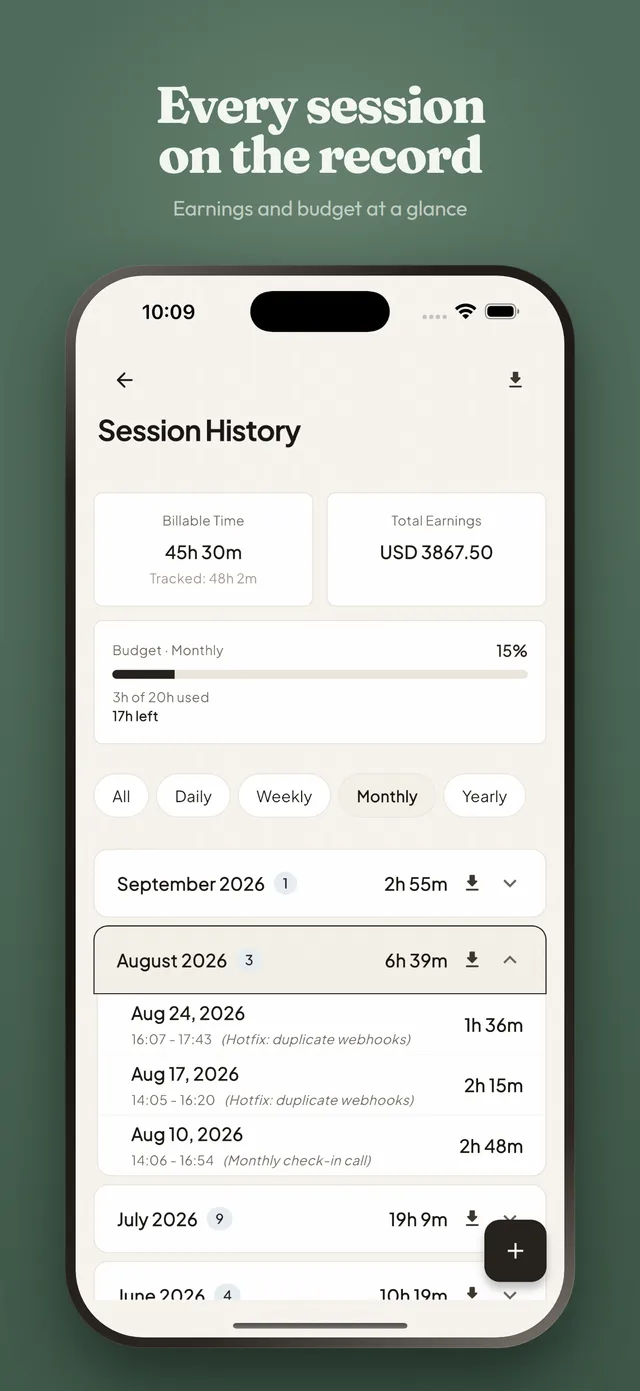
Sessions group themselves into the period you are looking at, and the totals follow. One project at a time, which is how a client asks the question.
- Choose All, Daily, Weekly, Monthly or Yearly, and the sessions collapse into groups you can open.
- Each group shows the total time and, from the project’s hourly rate, the total earnings.
- Weeks start on Monday, on Sunday or on whatever the device is set to.
- Session titles can be shown or hidden in the summary, depending on how much detail you want on screen.
Getting it out again
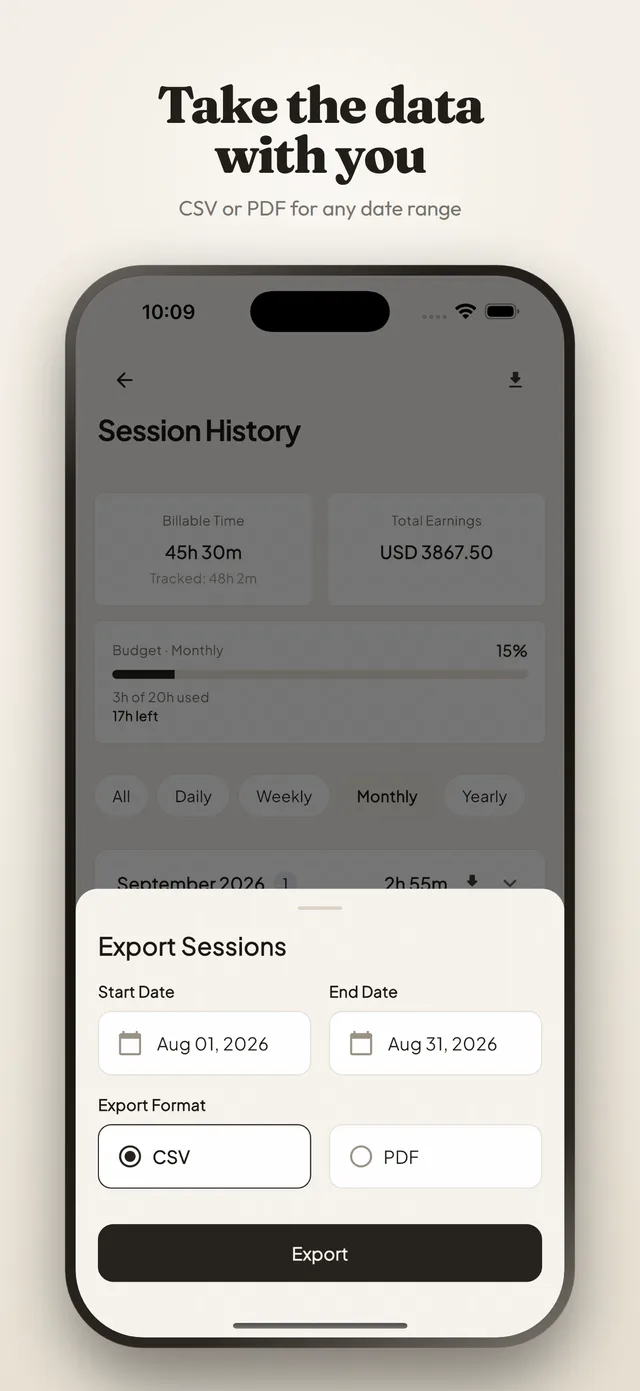
Tap export on a project, pick a start and end date, and choose CSV or PDF. The app hands the file to your phone's own save dialog, so it can go straight into a cloud drive, into a message, or into the folder your accountant asks for.
- CSV: one row per session — Date, Start Time, End Time, Duration, Title, Notes.
- PDF: the same table, plus the project name, the date range, total hours and total earnings.
- The range defaults to your first session through today, and you can narrow it to a billing period.
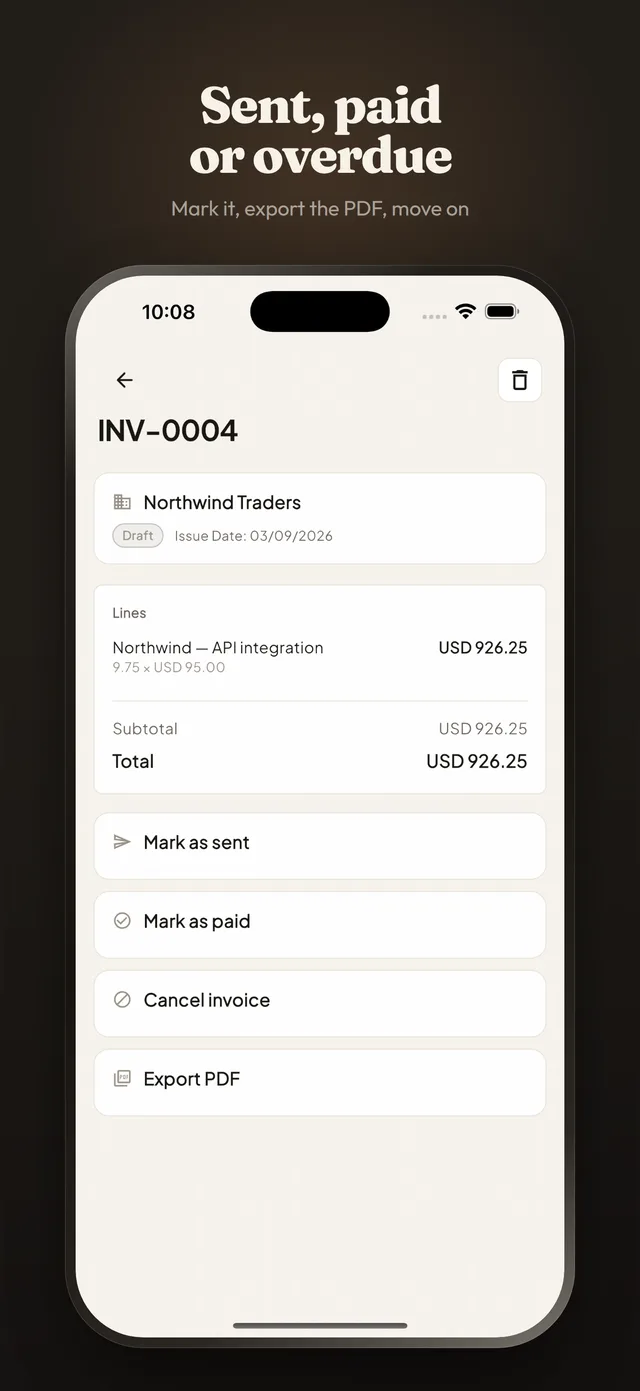
- Or skip the file entirely: pick a client and the same range, and build an invoice from it instead.
What the app does not do
Worth saying plainly, so the absences do not read as things you have failed to find.
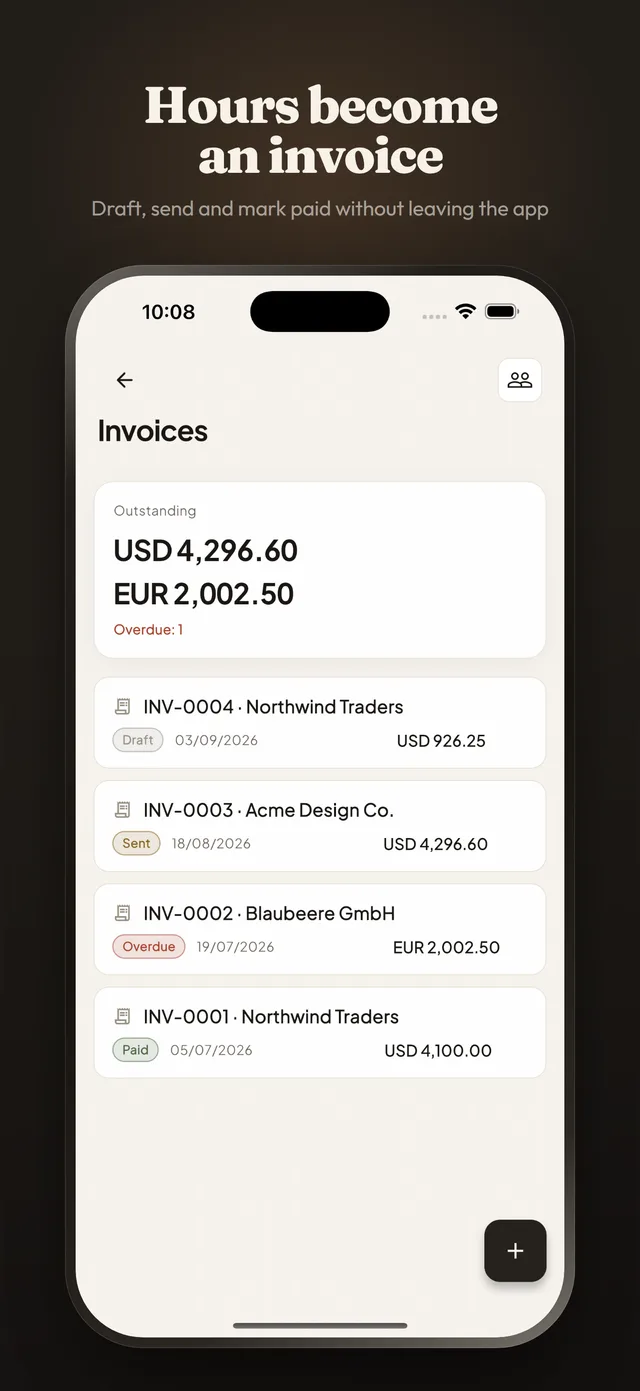
- It does not do your accounts. Invoicing turns the hours into an invoice and tracks whether it was paid; there is no ledger and no bank feed.
- It does not start and stop breaks. Punch out and punch back in; the gap shows in the log.
- It does not chase anybody. It tells you which invoices have gone past their due date; the email is still yours to send.
- It does not roll several currencies into one figure, because a total that mixes them means nothing.
In the app
Start with today.
Make one project, punch in, and see what the log looks like by this evening.
Free. No subscription, no ads, and no account unless you want sync.